

Amazon Seller Central · November 2026
New Amazon Seller Central: Where Your Tools Moved (2026)
Amazon is making the new Seller Central the default for every seller, with six workspaces in place of the old top menus. Your most-used tools now sit under new tabs, and the classic view is still one click away for a quick look.
Amazon is making the new Seller Central the default selling experience for all sellers, replacing the old top-level drop-down menus with six workspaces. The table below shows where each common tool moved. You can still open Classic Seller Central from the settings gear.
New Seller Central: Key Takeaways
- The new Seller Central is the default selling experience for all sellers. Amazon’s phased transition ran through August 2026, and Amazon’s help page states that no seller will be able to switch the default back to classic after that.
- Tools are grouped into six workspaces (My business, Products, Supply chain, Orders, Finance, Marketing), with Account Health and Settings in the top bar.
- Amazon says your account data and listings stay unchanged, so no action is needed to keep them.
- You can find any tool using the workspace tabs, the top-left navigation menu, the search bar or the site map.
What Is the New Seller Central?
The new Seller Central groups Amazon’s seller tools into six workspaces instead of relying on traditional top-level menus and drop-downs. Amazon says navigating more than 200 tools across disconnected pages was costing sellers time. The core features have not changed.
Two features sit at the center of the new homepage:
- Action Center: A centralized hub for notifications, tasks and alerts, including listing issues, policy notifications and performance alerts.
- Personalized dashboard: Shows key metrics such as sales, conversion and ad spend.
Where Did Each Seller Central Tool Move?
All of your existing tools are still in Seller Central, organized across six workspaces and a top navigation bar (seven tabs at the top of the homepage, including Account Health). The table below maps the tools sellers use most, based on Amazon’s US tool map.
| Workspace or Bar | Tools Included |
|---|---|
| My business | All reports (top right), Custom Analytics, B2B reports, Seller fulfilled reports, Seller Forums, Seller News |
| Products | Add products, Add variation, Manage products (with A+ content, Manage images, Manage videos and Manage experiments tabs), Manage pricing (under the Manage products arrow), Automate pricing, Analyze reviews (Manage feedback, Vine, Voice of the Customer tabs), Research products, Sell globally |
| Supply chain | Manage Amazon inventory, Send inventory (Manage shipments, Send to Amazon, Create shipment), Supply chain reports, FBA inventory reports, Inventory performance dashboard, Manage stranded inventory, Manage unfulfillable inventory, Manage AWD inventory |
| Orders | Manage orders, Manage returns (with Returns insights tab), Resolve claims, Shipping performance, Manage quotes, Manage other channels, Create MCF order, Upload order files |
| Finance | Manage payments and Payment reports (under Finance reports), Manage taxes, Tax document library, Lending, Seller Wallet, Currency Converter |
| Marketing | Manage Promotions, Manage Deals, Manage Coupons, Manage Brand Tailored Promotions, Manage Price Discounts, Brand Analytics, Ads Console, Manage Stores |
| Top bar (Account Health and Settings) | Account Health (including Performance Notifications), Settings gear icon (All settings, User Permissions, Manage Accounts, Notification Preferences, Return Settings, Shipping Settings, Tax Settings, FBA Settings) |
How to Find Any Tool in the New Seller Central
If you cannot spot a page right away, Amazon lists four ways to reach any tool:
- Workspace tabs: Click a workspace tab at the top of the homepage to open that area directly.
- Top-left navigation menu: Open the main menu in the top-left corner of any page to browse tools inside each workspace.
- Search bar: Type the name of any tool into the search bar at the top of the site and click the result.
- Site map: Open the site map inside the navigation menu to view all tools in one list.
Can You Go Back to Classic Seller Central?
You can still visit the classic view for a quick look, but Amazon’s help page states that the option to keep classic as your default experience is ending. As of June 3, 2026, Amazon removed the opt-out worldwide for newly registered sellers who were defaulted to the new Seller Central. By the end of August 2026, Amazon’s help page says the opt-out is removed for all existing sellers, and no seller can switch their default experience back to classic after that date.
Even without a default opt-out, you can still open classic Seller Central from the top-right settings gear:
- Go to the top-right corner of any new Seller Central page.
- Click the settings gear icon.
- Select Classic Seller Central.
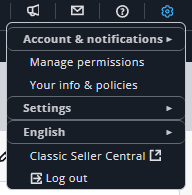
Any page you click while in classic Seller Central will open in the new Seller Central interface. Because some Seller Forums threads in October and November still mention accounts seeing a default-experience toggle, check your own settings gear menu to see what options your account currently shows.
What Stays the Same After the Switch
Amazon states that moving to the new Seller Central changes the navigation layout only, and no action is required to preserve your account:
- Account data, settings, listings, inventory and order history stay unchanged.
- SP-API integrations and third-party tools continue to work.
- Team members and secondary users keep their access.
- Advertising campaigns, promotions and FBA settings are unaffected.
Checklist: Get Your Team Ready for the New Seller Central
These steps are our suggestions for updating your team’s workflow:
- Update bookmarks and saved links for your top 10 daily pages.
- Write a one-page tool map for your team and virtual assistants so they know which workspace holds each task.
- Review Seller Central user permissions to confirm who has access to restricted tools.
- Update your daily report routine using the workspace paths above for the reports you check every day.
- Check your settings gear menu to see whether your account still shows a default-experience option or only the Classic Seller Central link.
New Seller Central FAQ
Where is Business Reports in the new Seller Central?
Business Reports and other account reports are under the My business workspace in the All reports menu at the top right. You can also reach them from the search bar or the site map in the navigation menu.
Can I switch back to classic Seller Central?
You can visit classic Seller Central by clicking the settings gear in the top-right corner and selecting Classic Seller Central, though any page you click there opens in the new interface. Amazon’s help page states that the opt-out to keep classic as your default was removed June 3, 2026 for new sellers and by the end of August 2026 for existing sellers.
Where did Manage Inventory go in the new Seller Central?
Manage Amazon inventory moved to the Supply chain workspace, alongside Send to Amazon, Manage shipments, and FBA inventory reports. Product catalog tasks such as Add products, Manage products and Manage pricing sit in the Products workspace.
Do I lose my listings or data in the new Seller Central?
No. Amazon states that your account data and listings are unchanged. Advertising campaigns and FBA settings are also unaffected.
How many workspaces are in the new Seller Central?
There are six workspaces: My business, Products, Supply chain, Orders, Finance and Marketing. The homepage top bar shows seven tabs because Account Health sits beside the six workspaces.
Where is Account Health in the new Seller Central?
Account Health has its own tab in the top navigation bar, alongside Performance Notifications.
Does the new Seller Central affect SP-API tools or third-party apps?
No. Amazon states that SP-API integrations and third-party tools continue to work without any action from you.
Seller Essentials Blog
More Amazon Seller Central guides from Seller Essentials
The new Seller Central layout changes where daily tools sit without changing how your account works. The Seller Essentials blog covers Seller Central updates and fee changes for third-party sellers, with step-by-step guides for the tools you use every day.
About the author

Advertisement
