Amazon Virtual Assistants · November 2026

Seller Central User Permissions: How to Give a VA Access Safely

Add a VA to Seller Central with limited access, using the employee or service provider route.

Share

When you give someone access to Seller Central, you are responsible for what they do there. Amazon says you are responsible for the actions of any users you add, including misuse, in its help page on user permissions. A VA should get only the access their tasks need.

If you are still looking for a VA, start with our Amazon virtual assistants page.

Key Takeaways

  • Setting and managing permissions requires a Professional selling plan.
  • Outside businesses, such as agencies, connect through Manage Services. In our view a VA who works only for you fits the employee route, but Amazon’s own notice also lists virtual assistants as service providers.
  • Start every user at None and grant access one task at a time.
  • Each person needs their own login with two-step verification.
  • Review access on a schedule, and remove it the day the work ends.

What You Need Before You Add a User to Amazon Seller Central

Amazon’s help page states that the ability to set and manage permissions is available only to sellers with a Professional selling plan. If you sell on an Individual plan, you will not see the tools in this guide.

Before you invite anyone, settle four things:

  • Who invites: The primary user can open the User Permissions page. An employee can open it only if the primary user explicitly grants that access.
  • One login per person: Account credentials are unique, and Amazon says confidential information should not be shared. Never hand your VA your own login.
  • Their own email: Each person needs an email address that only they use.
  • Two-step verification: Amazon requires it for every Seller Central user, and Support cannot make exceptions. Each person turns it on for their own login at first sign-in.

Employee or Service Provider Access for a VA in Seller Central

Seller Central has two routes for giving other people access. Amazon’s help page describes an employee as one of your own team members, and a service provider as a third party outside your organization, including agencies, consultants and external contractors.

In our view, a VA who works full time and only for you is part of your team, so the employee route fits. A freelancer who runs a separate business and serves other clients is closer to an outside contractor. That person, or an agency, connects through Manage Services.

Amazon does not draw the line that way in every notice. Its September 1, 2026 notice on service provider access names agencies, freelancers and virtual assistants among the providers that must complete business verification. If your VA connects as a service provider, expect that step.

Comparison Employee Service provider
Who it fits Someone who works inside your business, such as a full-time VA who works only for you An outside business, such as an agency, consultant or contractor
Where managed Manage Permissions, then Manage Employees Manage Permissions, then Manage Services
How added You send an invitation by email The provider sends an authorization link, or you choose Authorize Now on its Service Provider Network listing
Duration No expiration listed by Amazon 365 days, then you reauthorize
How removed Remove user Remove the provider in Manage Services
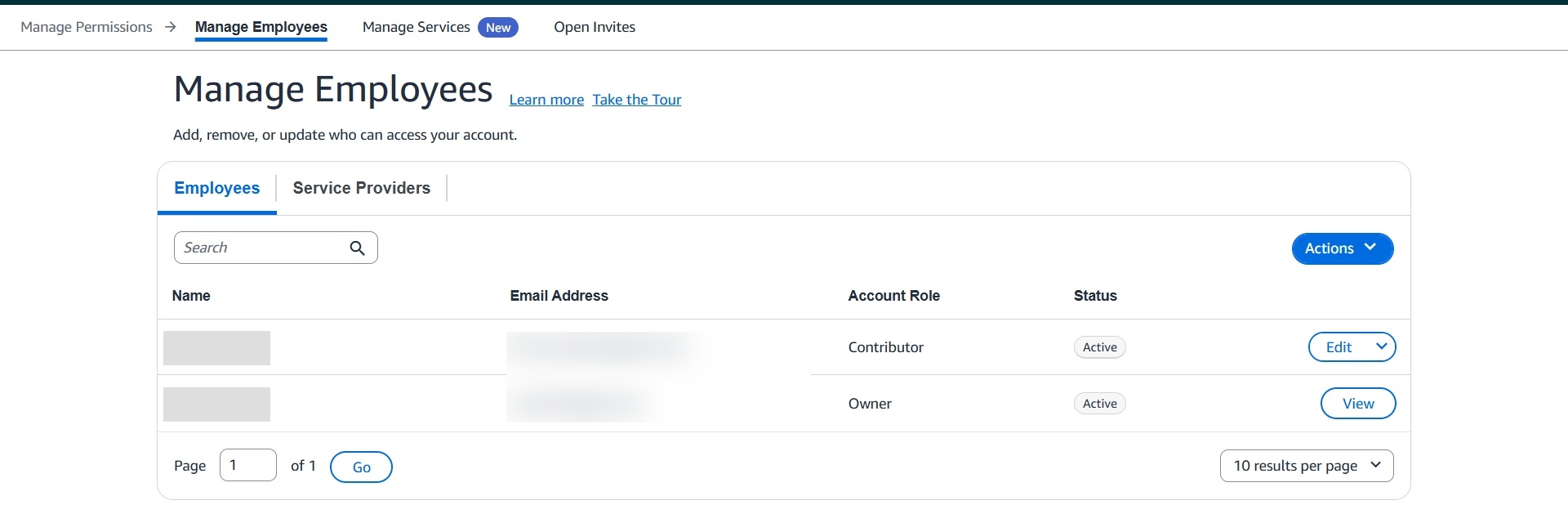
Manage Employees list in Seller Central showing employee names, account roles and status

Manage Employees list with the Employees and Service Providers tabs.

The Service Providers tab under Manage Employees shows a notice that it is going away. Amazon’s screen does not give a date.
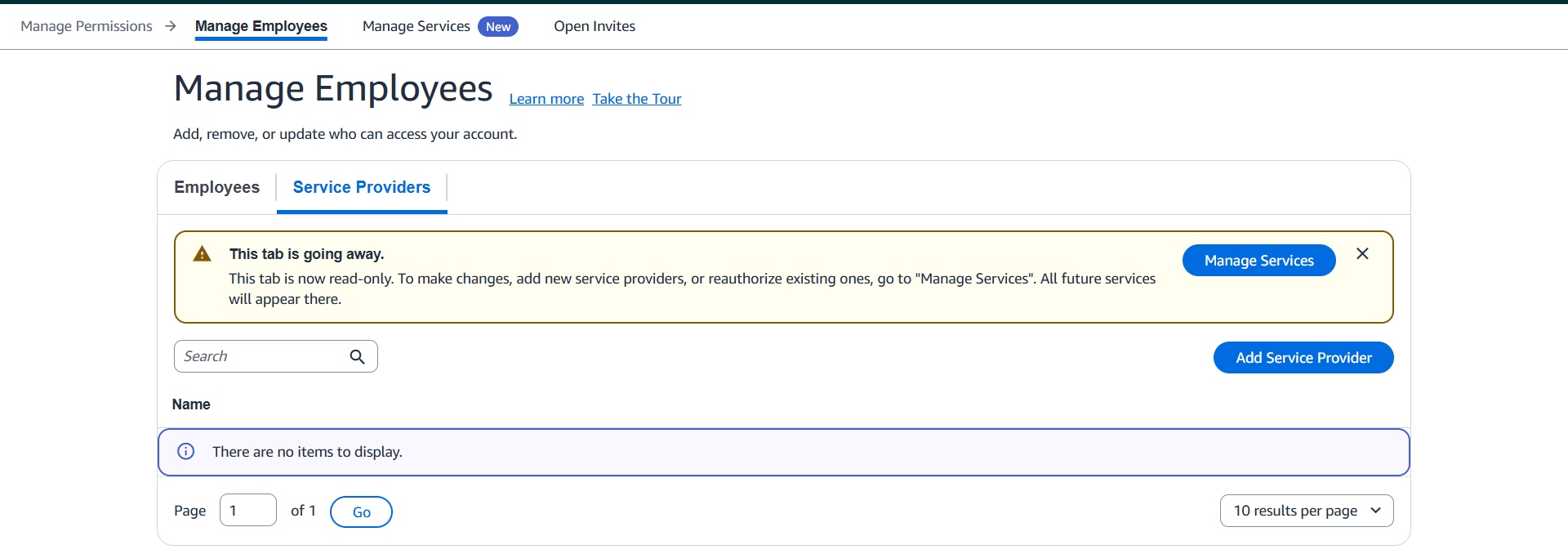
Seller Central Service Providers tab with a notice that the tab is going away and moves to Manage Services

The Service Providers tab is read-only and points to Manage Services.

The tab is read-only, and adding or reauthorizing a provider happens in Manage Services.

Manage Services tab in Seller Central for authorizing service providers, with an authorization date column

Manage Services table with Service Provider Name, Service Category, Status, Authorization date and Actions columns.

Amazon’s help page lists no expiration for employee access, so check older employee accounts and remove any that are no longer needed. Whichever route you use, the permission rules below apply.

How to Add a VA to Seller Central, Step by Step

For an employee, the path in the live account is Manage Permissions, then Manage Employees, then Add Employee. Amazon’s help page calls the same button Invite Employee.

  1. Open the Settings menu and choose User Permissions.
  2. Go to Manage Employees and click Add Employee.
  3. Enter the VA’s name, email address and language. A Site Access section appears below once you enter an email address.
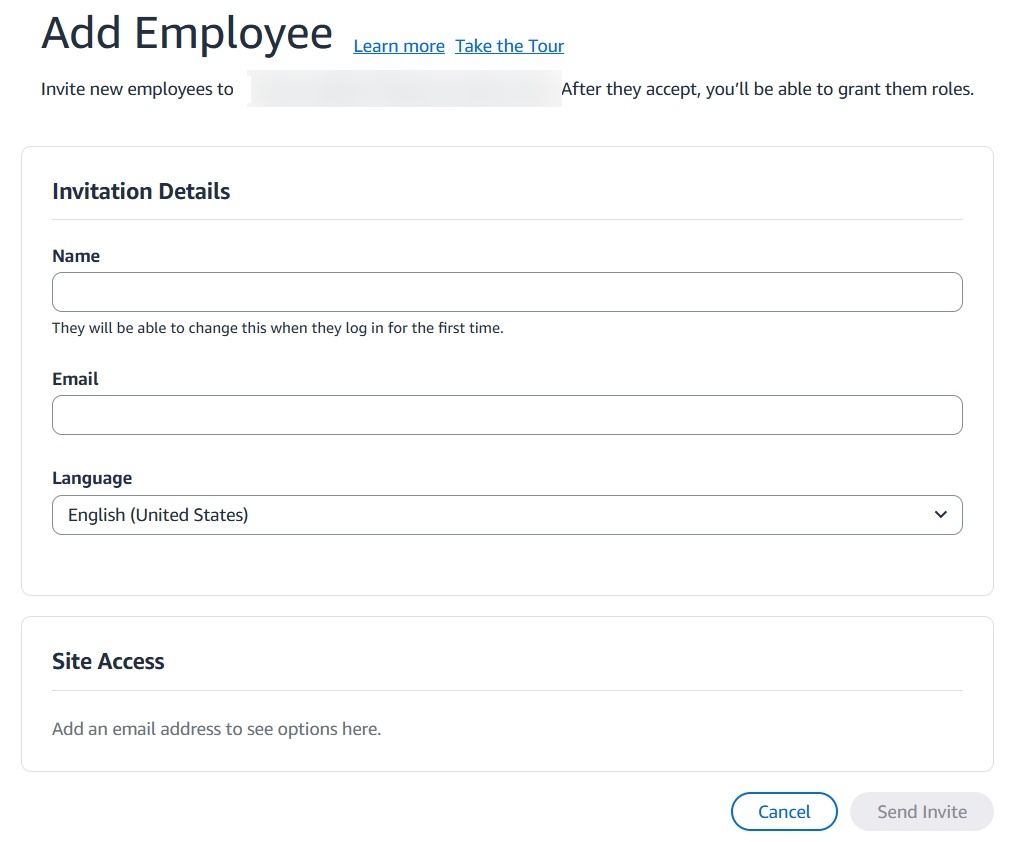
Add Employee form in Seller Central user permissions with name, email address, language and site access fields

Add Employee form with Name, Email, Language and Site Access sections.

  1. Send the invite. The VA appears under Open Invites, on the Users tab, until they accept. Service provider invites appear on the Service Providers tab of the same page.
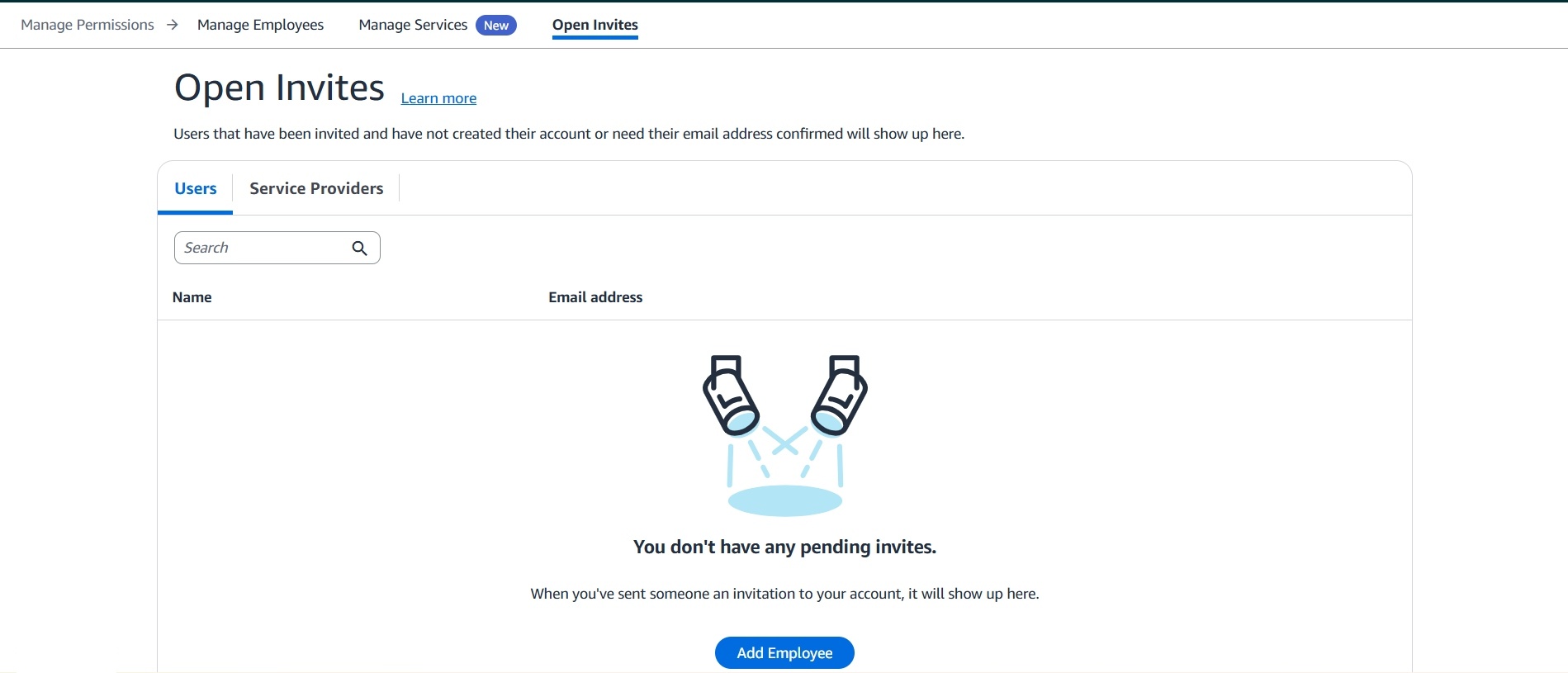
Open Invites tab in Seller Central user permissions with Users and Service Providers tabs

Open Invites tab with Users and Service Providers tabs.

  1. The VA opens the email, follows the instructions and sets up two-step verification.
  2. Once they accept, click Edit next to their name and set permissions.

Some permissions cannot be granted in some marketplaces until you verify the user’s identity. When that applies, the Edit User Permissions page shows Required Actions with a Finish Verification button for each marketplace.
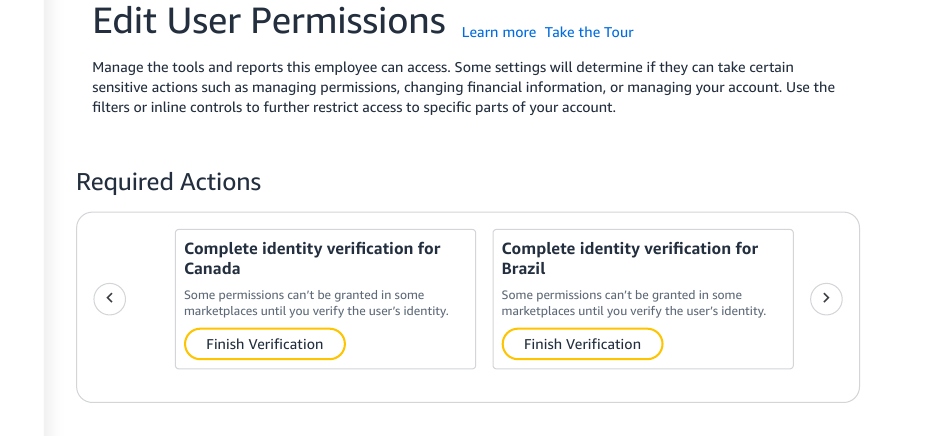
Required Actions on the Edit User Permissions page in Seller Central with Finish Verification buttons for Canada and Brazil

Required Actions cards with Finish Verification buttons.

To authorize a service provider instead, ask the provider for an authorization link, or open its listing in the Service Provider Network and choose Authorize Now. Review the permissions on the screen, which each start at None. Limit them by country or region if you want, tick the confirmation box and choose Authorize. The access lasts 365 days. The provider must be registered in Solution Provider Portal and approved for the roles shown, and you must be the account owner or an administrator.

Seller Central Permissions Explained: None, View, Edit and Admin

Each permission can be set to one of four levels:

  • None: No access to that tool.
  • View: The person can look but not change anything.
  • Edit: The person can make changes.
  • Admin: A fourth level that appears in the column header and on some tools. Amazon’s screen does not explain Admin. We assume it is the highest level, so keep it off for a VA.

Not every tool offers all four levels. Some offer only None and View, and some only None and Edit. The permissions are grouped into sections: Advertising, Amazon Ads, Amazon Lending, Amazon Pay, Brand Benefits, Buy with Prime, Growth, Internal/Administrative Tools, Inventory, Media Upload, Orders, Other, Performance, Pricing, Reporting Dashboards, Reports, Services, Settings and Store Design.

Be careful with the User Permissions page itself. Amazon’s help page says an employee becomes an administrator when granted View and Edit on the user permissions page, and an administrator can manage permissions for other employees and service providers. Do not make a VA an administrator.

Amazon Seller Central User Roles and Permission Presets for a VA

The Edit User Permissions page includes a Get Recommendations panel, currently marked Beta. It offers seven presets, each with Amazon’s own description:

  • Generalist: Basic access
  • Fulfillment: Inventory and shipments
  • Advertising: Marketing and campaigns
  • Content: Listing optimization
  • Customer Service: Feedback and returns
  • Executive: Strategic performance
  • Manager: Manage access for others

Treat a preset as a starting point and check what it switches on before you save. Do not pick Manager for a VA, because its description is managing access for others.
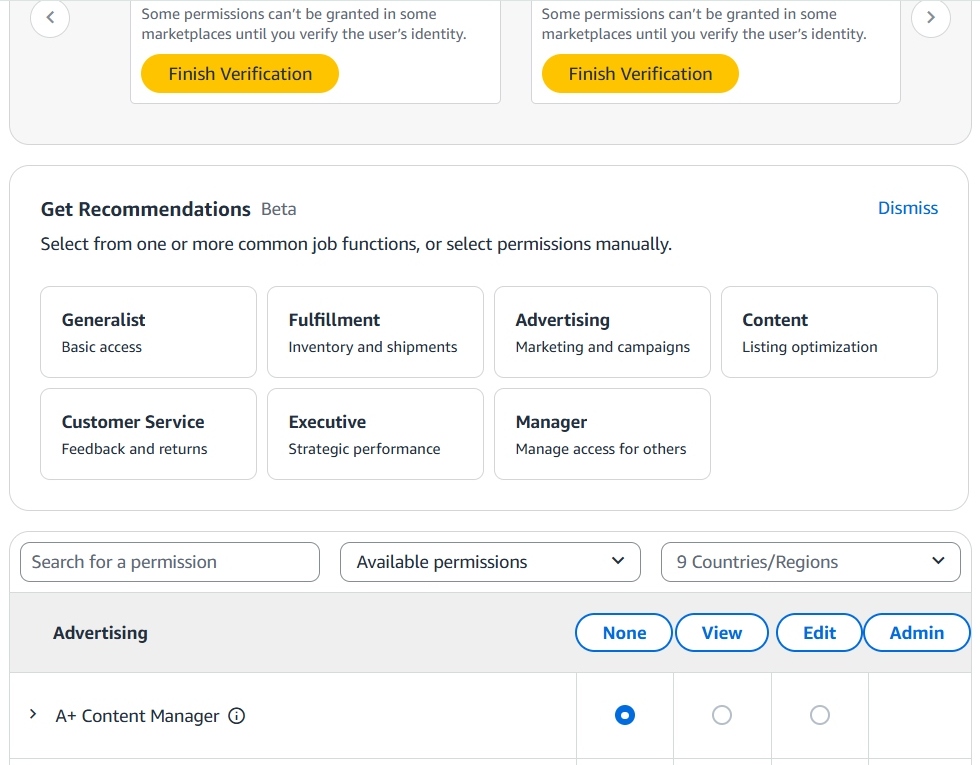
Seller Central Get Recommendations permission presets with None, View, Edit and Admin level columns

Get Recommendations presets and the None, View, Edit and Admin level columns.

These are our suggested starting points, not Amazon’s rules. Check them against your live permission screen.

VA role Usually needed Keep at None
Customer service VA Orders, messaging, returns requests (not Manage Refunds) Payments, Account Information, Advertising
Listing VA Inventory, Media Upload, content tools Manage Refunds, Payments, Settings
PPC VA Amazon Ads, Advertising Payments, Manage Refunds, Account Information
Bookkeeper or accountant Reports (View only, other than Payments, Seller Fee Invoices and Tax Document Library) User permissions, Manage Refunds

Seller Central Permissions to Keep at None for a VA

Some permissions let a person spend money, accept legal terms or change who has access. Leave these at None for a VA:

  • Agreements/Amendments: Amazon notes that granting View and Edit means you represent the user has authority to agree to online agreements, amendments and terms on behalf of your business.
  • Manage Refunds: It appears under Amazon Pay and under Orders. Leave it at None unless the VA’s job includes issuing refunds.
  • Seller Assistant and Seller Assistant Workflows: Amazon says a user with these can view sensitive account data and act on your behalf, and that you should grant them only to trusted people who work directly for your business.
  • Payments, Seller Fee Invoices and Tax Document Library: All three sit under Reports and expose financial data.
  • Account Information, Manage Authorized Partners, Merchant Token and Business Insurance: All four sit under Settings. Check what each one shows on your live screen before you grant it.

Seller Central Two-Step Verification and Login Rules for a VA

Amazon requires two-step verification for every Seller Central user, and its two-step verification FAQ says Support cannot make exceptions. A code is sent at each sign-in unless the user chooses to stop asking on that device, an option Amazon describes on its trusted device page.

Two-step verification is one reason to avoid shared logins. When several people use one login, all of them need access to the device that receives the code. Individual logins avoid that problem.

  • Give each person their own login and email.
  • Use an authenticator app where possible. Amazon says it is more secure than text or voice codes.
  • Do not let a VA sign in through a browser profile that holds your own login.
  • Do not choose the trusted-device option on a shared computer, because it stops the code prompt on that device.

Amazon Related Accounts and Virtual Assistants

Some sellers worry that adding a VA could link their account to another account. Amazon’s selling policies and seller code of conduct allow one Seller Central account per region unless you have a legitimate business need. An Amazon staff post on multiple accounts lists access to another account, by the seller or their employees, and use of a third-party account management service as ways accounts become associated.

Ask a VA up front whether they run their own seller account. Put expectations in writing, including that they work only from their own devices and do not reuse your data. If Amazon ever asks about a connection between accounts, respond with facts and use the appeal path in the notice.

How to Remove a User From Amazon Seller Central

Remove access the same day the work ends.

  1. Open the Settings menu and choose User Permissions.
  2. For an employee, find them under Manage Employees, open the dropdown beside their name and click Remove user.
  3. For a service provider, open Manage Services and remove the provider there.

A service provider’s access lasts 365 days. Amazon’s notice says it sends an email and an Action Center notification before each expiration, and that a provider loses access if you do not reauthorize. Reauthorize before then if you want it to continue, and put the date on your calendar. If credentials were ever shared, change the passwords and recovery details.

We suggest reviewing the user list every quarter and removing any account nobody uses.

Need prep center access instead? See our guide to prep center access in Seller Central.

Common Seller Central User Permission Mistakes

  • Sharing the owner login.
  • Giving Edit on everything to save time.
  • Granting access in every country and region when the VA only needs one.
  • Leaving a former VA active.
  • Using one login for several VAs.
  • Missing the end of a service provider’s 365 days.

Frequently Asked Questions About Seller Central VA Access

Can I add a user to Amazon Seller Central on an Individual plan?

No. Amazon says setting and managing permissions is available only to sellers with a Professional selling plan.

Should I add my VA to Seller Central as an employee or a service provider?

In our view, a VA who works full time and only for you fits the employee route, and an agency or outside contractor connects through Manage Services. Amazon’s own notice also lists virtual assistants among service providers, so if your VA connects that way, expect business verification. Amazon lists no expiration for employee access.

How do I give a VA access to my Amazon Seller Central account?

Open User Permissions, go to Manage Employees and choose Add Employee. Enter the VA’s name, email address and language, send the invite, and set permissions once they accept.

What permissions should I give a VA in Seller Central?

Start every permission at None and turn on only what the VA’s tasks need. Keep Payments, Account Information, Agreements/Amendments and the user permissions page at None.

Why does Seller Central keep asking my VA for a code?

A code is sent at each sign-in unless the user chooses to stop asking on that device. Two-step verification is required for every Seller Central user, and Support cannot grant exceptions. Give each person their own login and an authenticator app.

Can I make my VA an administrator in Seller Central without giving up control?

Not without giving up some control. An employee who is granted View and Edit on the user permissions page becomes an administrator, and an administrator can manage permissions for other employees and service providers. Keep that access off for a VA.

How long does a service provider’s Seller Central access last?

Access lasts 365 days. Amazon says it notifies you before each expiration. Reauthorize before the date to avoid an interruption.

Can adding a VA get my Amazon account suspended or linked to another account?

The sources cited here do not say that adding a user causes a suspension. Amazon does hold you responsible for the actions of added users, and an Amazon staff post lists access to another account as a way accounts become associated, so read Amazon’s multiple-accounts policy and vet the VA.

How do I remove a VA from my Amazon Seller Central account?

For an employee, use Remove user under Manage Employees. For a service provider, remove the provider in Manage Services. Do it the same day the work ends.

Can a VA in another country use my Amazon Seller Central login?

Do not share your login. Give the VA an individual login with two-step verification, so each sign-in uses the VA’s own device and code.

How often should I review who has access to my Seller Central account?

We suggest quarterly.

Amazon Virtual Assistants

Amazon Virtual Assistant Services and Hiring Tips

Plan what the VA will do before you set up a login. Our Amazon virtual assistants page lists VA services and hiring tips, so you can compare options and choose which work to hand off first.

Visit the VA page

About the author

Greg Purdy, founder of Seller Essentials

Greg Purdy

Founder, Seller Essentials

Greg Purdy is the founder of Seller Essentials and has been trying to figure out this ecommerce thing since 1999. He writes Seller Essentials’ coverage of the Amazon, eBay, and multi-channel changes that actually affect third-party sellers, drawing on more than two decades of hands-on selling.

Leave A Comment

Advertisement

Go to Top